%20BLUE%20TEXT.png)
The DTC Timeline shows the fault codes (DTCs) reported by a trailer's EBS over a period of time, plotted against the trailer's trips and its amber warning lamp. It helps you see when a fault first appeared, whether it is still live, and whether it lines up with journeys or the amber lamp coming on.
🧭 Getting to the DTC Timeline
You're on the Asset View page.
-
Click EBS Information in the left sidebar.
-
Scroll down to the DTC Timeline card.
The DTC Timeline shows the last 90 days by default.
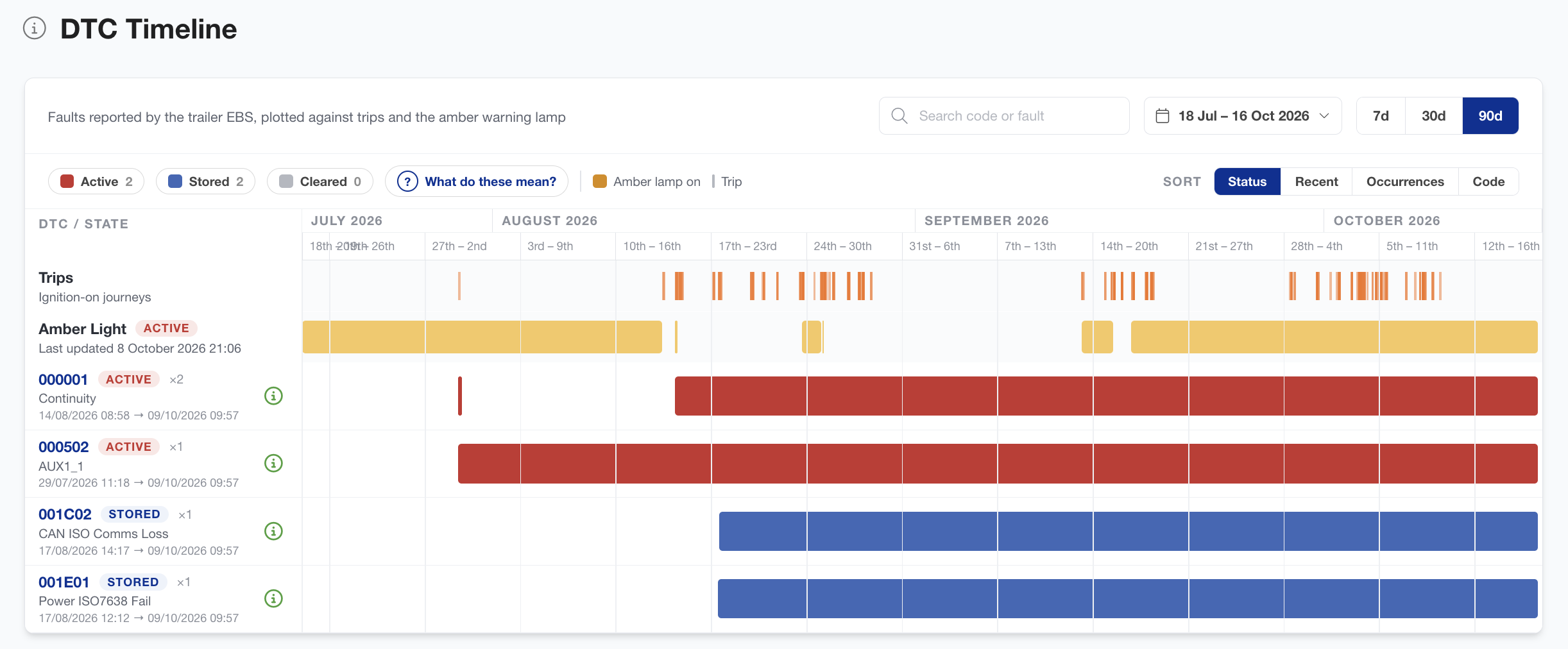
📚 Reading the timeline
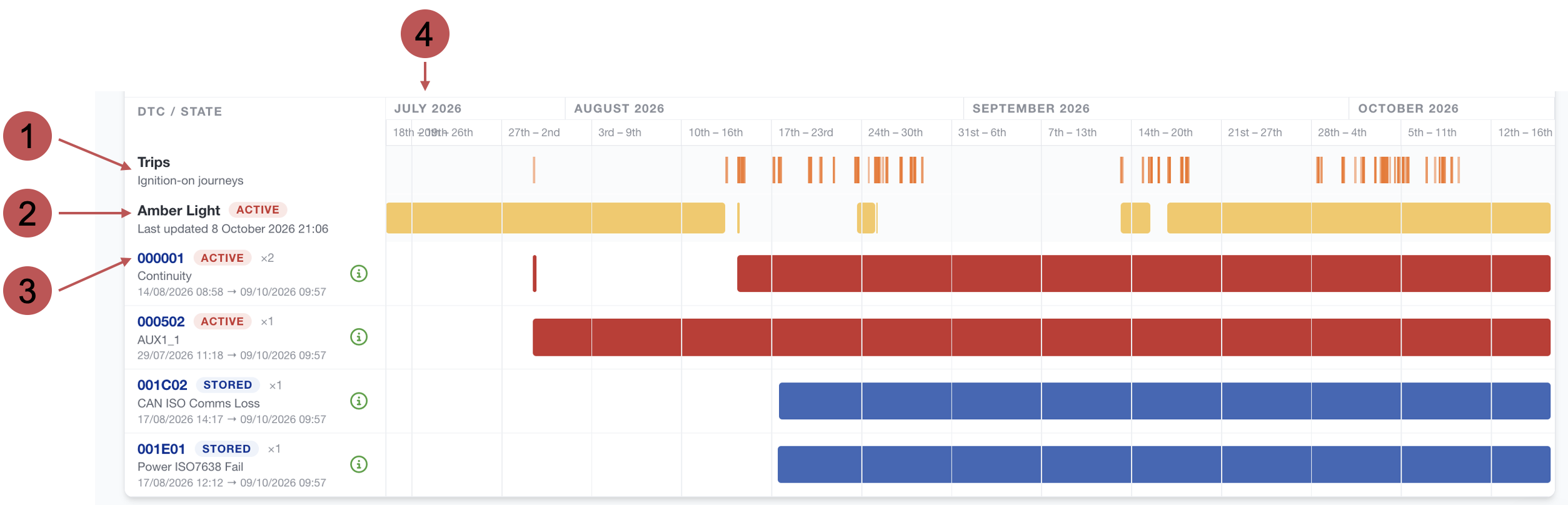
Time is displayed from left to right, with the intervals shown along the top. Each row below shares that same time axis, so anything that lines up vertically happened at the same time.
|
No. |
Description |
|---|---|

|
Trips Each orange mark is an ignition-on journey. Hover over a mark to see when and where the trip started and ended. |

|
Amber Light Yellow bars show when the trailer's amber warning lamp was on. Hover over a bar to see when and where it turned on and off. An ACTIVE label next to the title means the lamp is on right now. Last updated shows when we last received the lamp's status. |

|
Fault code rows Each fault code has its own row. The bars show the periods when the EBS reported that code. See Fault code rows below. |

|
Timeline The timeline. Depending on the selected date period, the intervals shown will vary.
|
Fault code rows

|
No. |
Description |
|---|---|
|
|
Code The fault code, for example 000001. Click it to open the fault's definition and guidance from the EBS manufacturer. |
|
|
State Whether the fault is ACTIVE , STORED or CLEARED . See Fault states. |
|
|
Occurrences (×2) How many separate times the fault was reported in the selected date range. Each occurrence is one bar on the row. |
|
|
Fault name A short description of the fault, for example CAN ISO Comms Loss. |

|
Dates When the fault was first seen, and when it was last read from the EBS. |

|
Severity icon How urgent the fault is. Hover over the icon for more detail, or click the code to see the full guidance. See Severity categories. |

|
Bars The periods when the EBS reported the fault. Hover over a bar to see its start and end times. Click a bar to open the fault's definition. |
Why are all of a fault's bars the same colour?
A row's colour shows the fault's state now, not its state at each point in the past. For example, if a fault has since been cleared, every bar on its row is grey, including the older ones from when it was live. This keeps the focus on which faults need attention today.
🎨 Fault states
Click What do these mean? on the timeline to see this key at any time.
|
State |
Description |
|---|---|
|
ACTIVE (red) |
A live problem. The fault is present on the EBS right now. |
|
STORED (blue) |
Not a live problem, but still recorded in the EBS's memory. The EBS keeps a record of past faults until they are cleared, so a stored fault tells you something happened even if it isn't happening now. |
|
CLEARED (grey) |
A fault that was reported in the past but has since been cleared from the EBS, for example by a technician or a remote clear command. |
 Severity categories
Click What do these mean? on the timeline to see this key at any time.
|
Category |
Description |
|---|---|
|
Check Immediately 
|
A critical fault that needs urgent attention. |
|
Check at Next Halt 
|
Should be inspected when the vehicle next stops. |
|
Maintenance Only 
|
Can be dealt with during routine maintenance. |
|
Other 
|
The EBS manufacturer hasn't given this fault a severity category. |
Severity guidance is general only and isn't a recommendation for any specific action or repair. If you're concerned about a fault, contact your maintenance provider.
🔍 Search, filter and sort

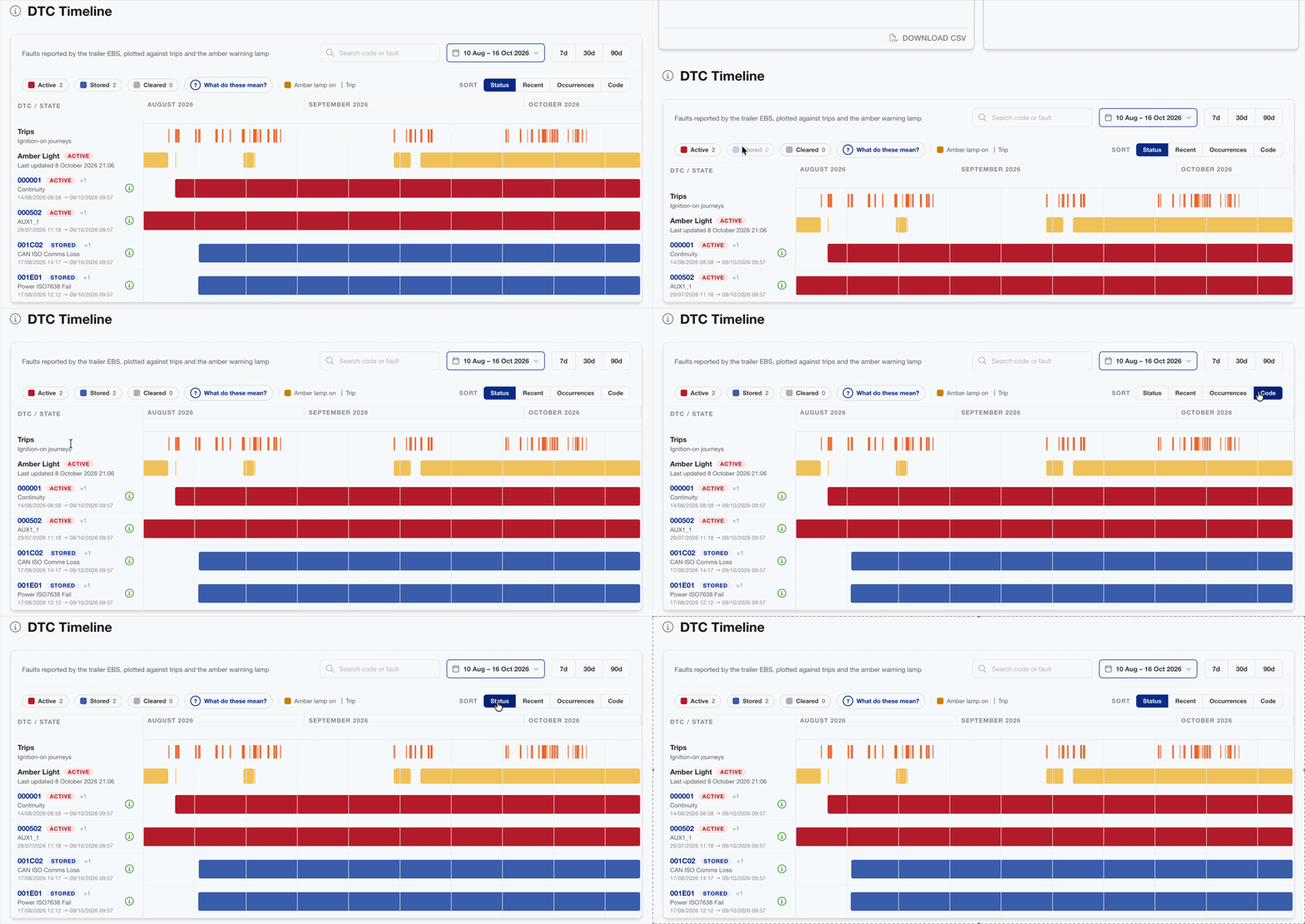
Filter by state
The Active, Stored and Cleared chips show how many faults are in each state.
Click a chip to hide those faults, and click it again to show them.
Sort
|
Option |
Order |
|---|---|
|
Status (default) |
Active faults first, then stored, then cleared. Within each state, the most recently read faults come first. |
|
Recent |
Most recently read faults first, whatever their state. |
|
Occurrences |
Faults reported most often in the selected range first. |
|
Code |
In order of fault code. |
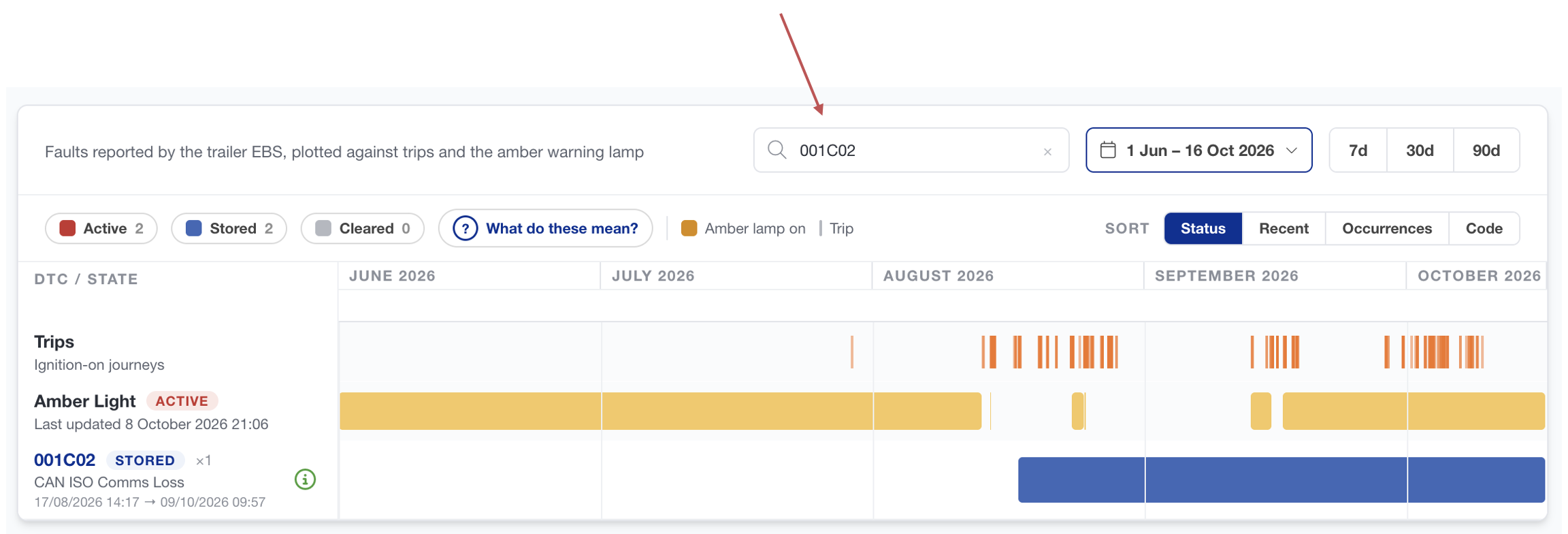
Search
Type in Search code or fault to find a fault by its code or name, for example 001C02 or Comms. Click to clear the search.
📅 Changing the date range
Click 7d, 30d or 90d to show the last 7, 30 or 90 days.
To choose your own dates:
-
Click the date range button, for example 18 Jul – 16 Oct 2026.
-
Choose a From date and a To date.
-
Click Done.
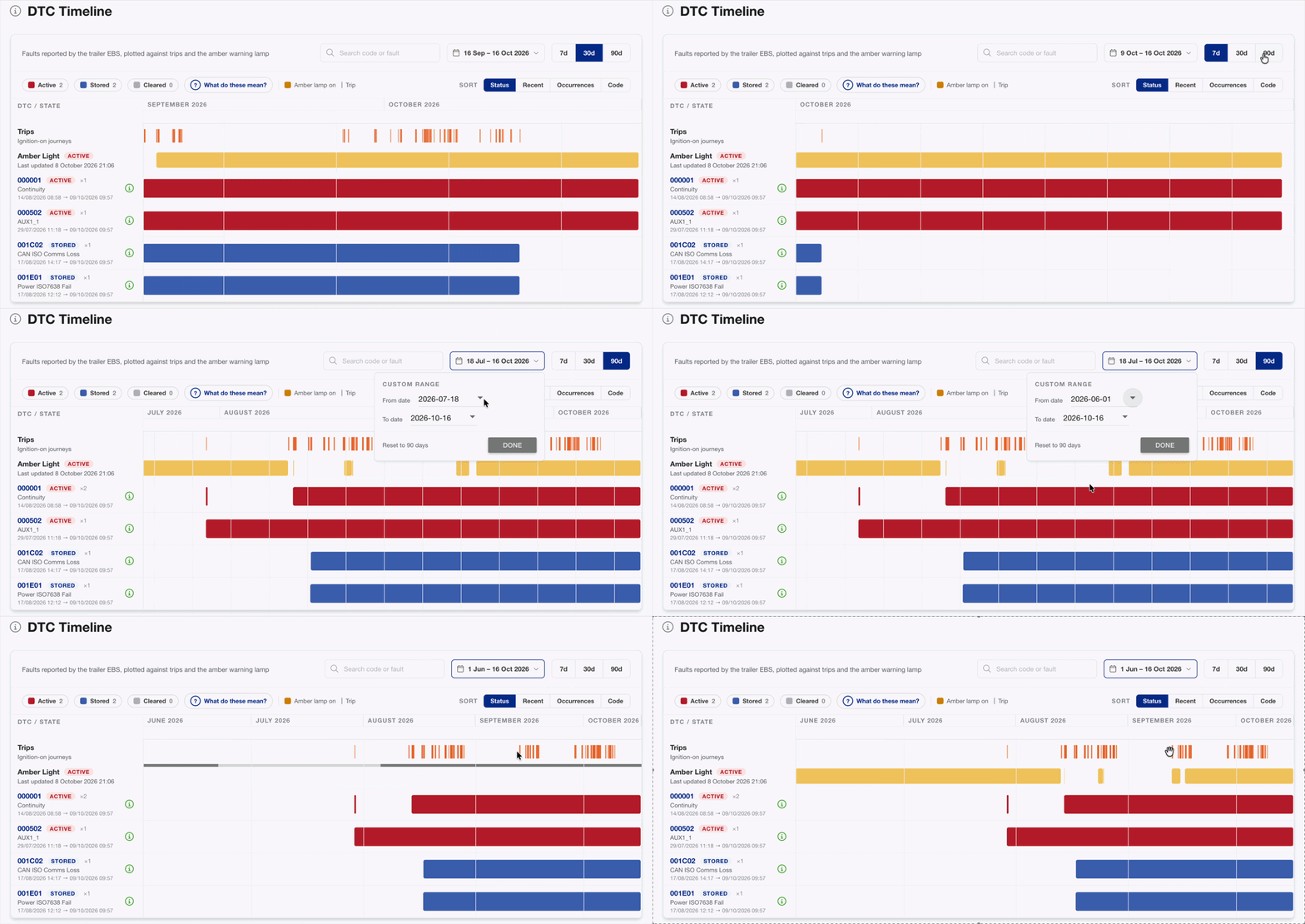
The timeline updates to show your chosen dates.
A custom range can be up to 6 months long. If you pick dates further apart, the other date is moved automatically to keep the range within 6 months. Click Reset to 90 days to go back to the default.
💡 Tips
-
Move your mouse across the timeline to show a vertical line with the date. Use it to check whether a fault started at the same time as a trip or the amber lamp coming on.
-
A fault that appears during trips and alongside the amber lamp is more likely to be affecting the trailer on the road.
-
If you see No faults match the current filters, check whether a state chip is turned off or a search is still entered.
-
If you see Unable to load DTC history, click Retry.
🔗 Related pages