%20BLUE%20TEXT.png)
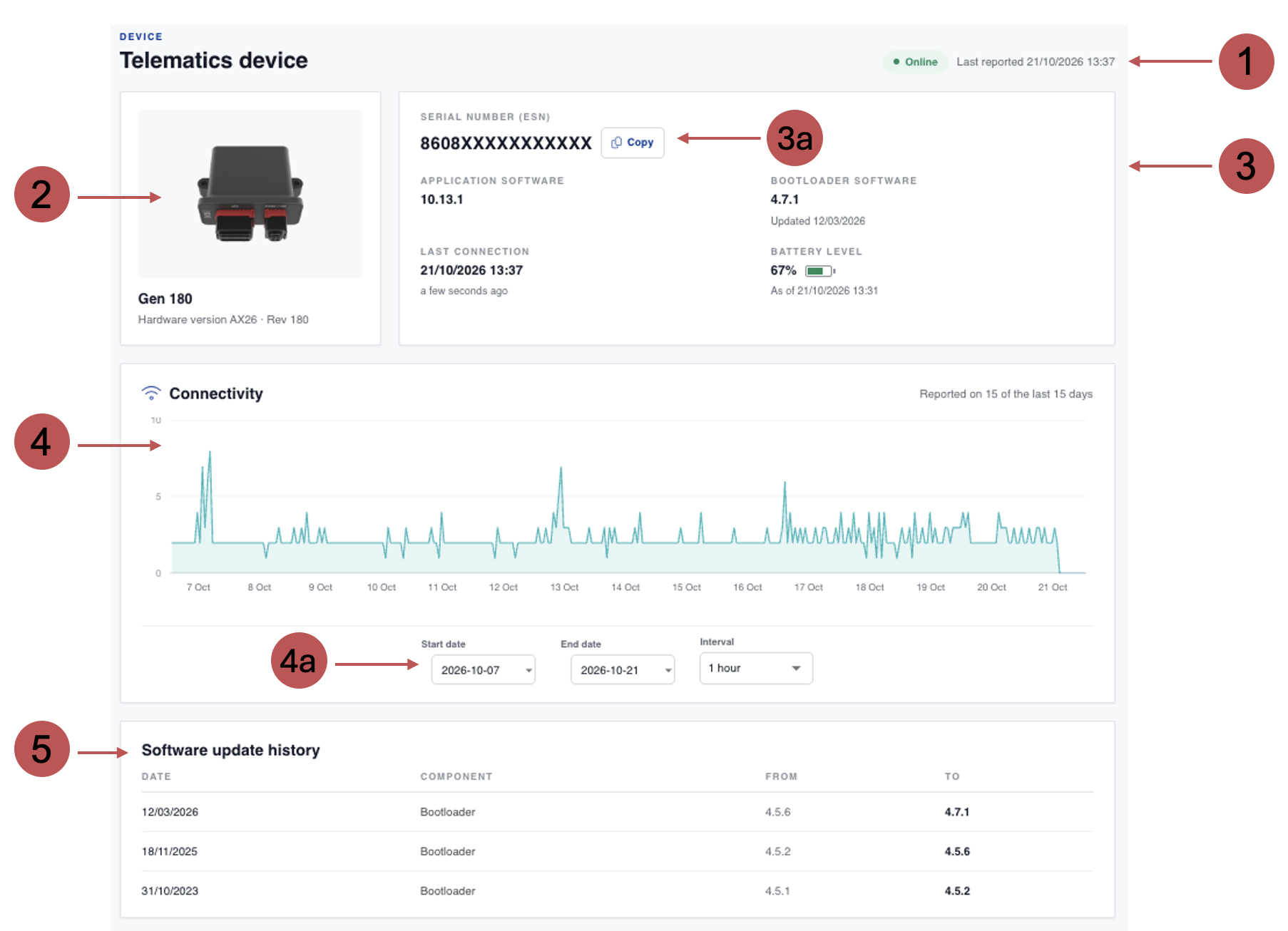
The Device details page shows information about the telematics device fitted to an asset.
You can check whether the device is reporting, which hardware and software it is running, how often it has connected over a period of time, and when its software was last updated.
This is useful when you want to confirm a device is working as expected, or when you need the device's serial number to contact Axscend Support.
Getting to Device details
You’re on the Asset View.
-
Click Device details under Device in the left sidebar.
The Device details page will open.
The Device section only appears in the sidebar when the asset has a telematics device fitted.
Device details information
|
No. |
Description |
|---|---|

|
Device status and last reported The status shows whether the device is currently reporting. It is based on how long ago the device last connected:
A Delayed or Offline status does not always mean there is a fault. Devices connect less often when an asset is parked or stored, and they cannot connect in areas with no mobile signal. Last reported shows the date and time of the device's most recent connection. |

|
Hardware Shows a photo of the device, its model name and its hardware version (and revision, where available). If we don’t have a product photo for that hardware version yet, you’ll see No image available instead. |

|
Device information
3a - Copy ESN
|

|
Connectivity This chart shows how many times the device connected over the selected period. Gaps in the chart show times when the device did not connect. The summary in the top right corner shows how many days in the selected period the device connected at least once (e.g. Reported on 12 of the last 15 days) 4a - Date Picker Controls
|

|
Software update history Shows the five most recent software updates on the device, newest first. Each row shows the date of the update, which software was updated (Application or Bootloader), and the version it was updated from and to. If no updates have been recorded for the device, you’ll see No software updates recorded yet. |