.png)
Types of Filters
There are a few different types of filters including:
Text
Dropdown
Checkbox
Slider
Date Picker

The headers will differ depending on which page of the report builder you are on.
Text
The text fields allow you to start typing a value, and within a dropdown shows suggestions of filters items that match the search text you entered.
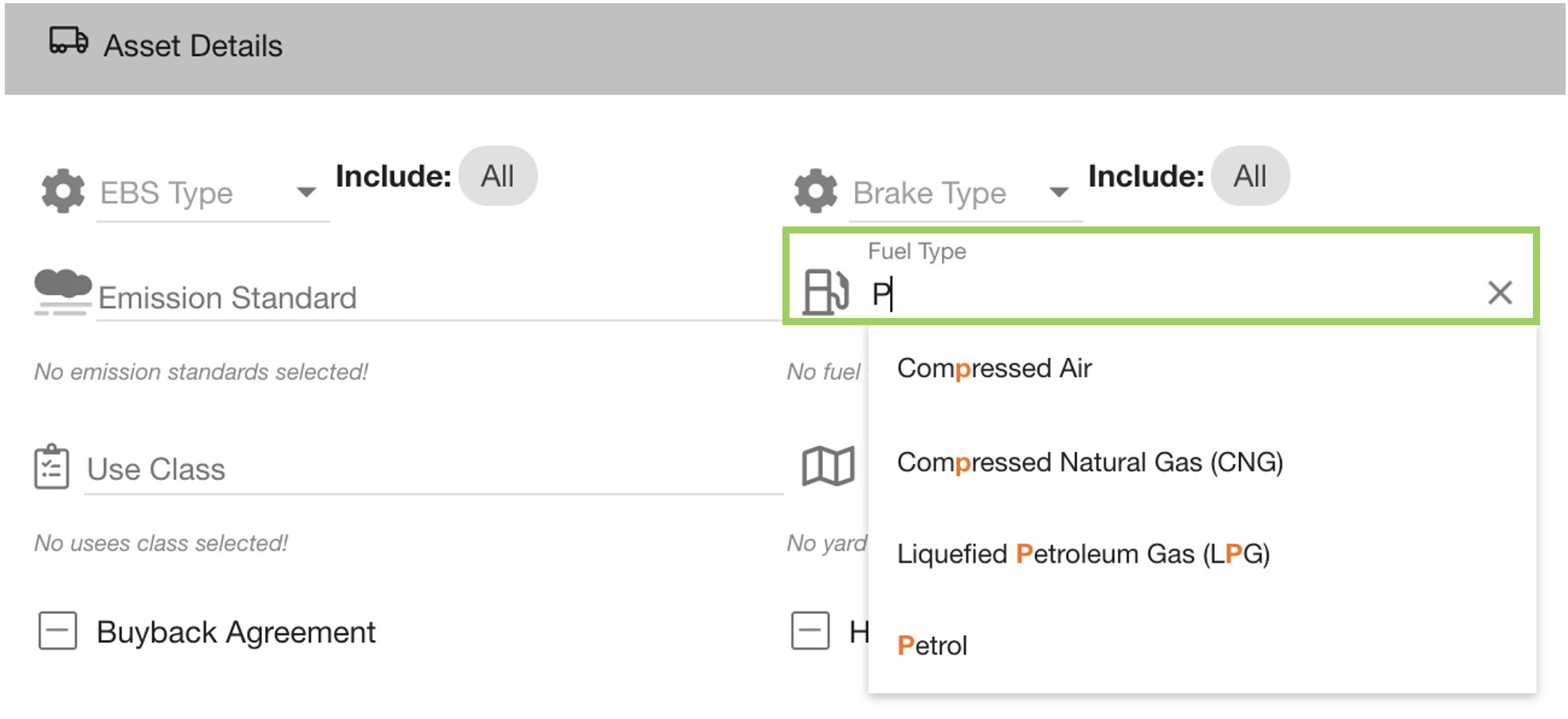
Click any row in the dropdown to apply the filter item.
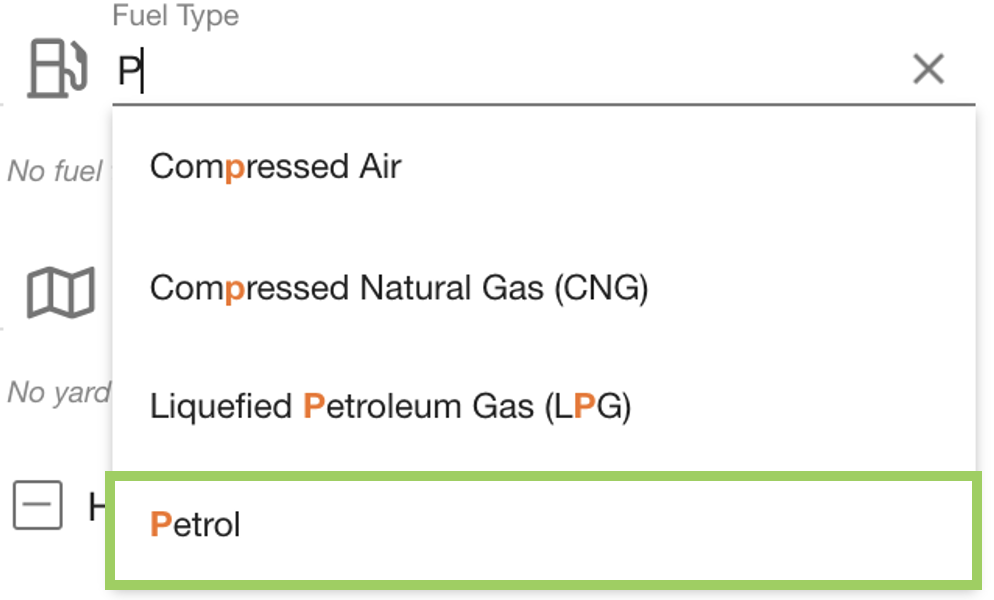
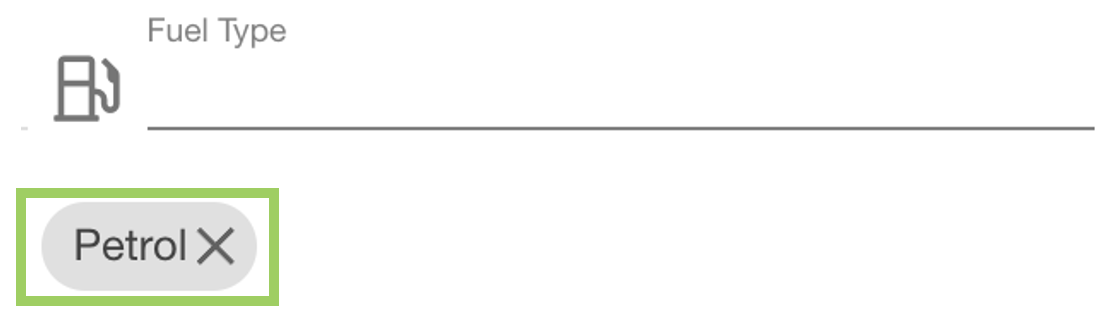
The filter item you selected will be displayed underneath the field in a ‘chip’
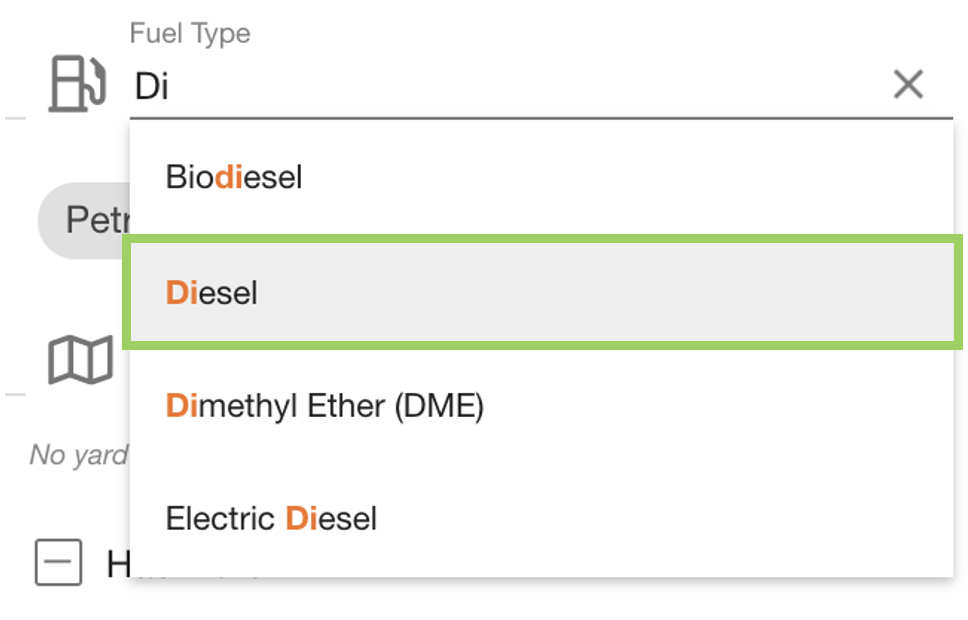
You can also add more than one filter item for each field by re-doing the process of typing into the field and selecting a row.
You can remove filter items by clicking the 'X' icon on the chip you want to remove.
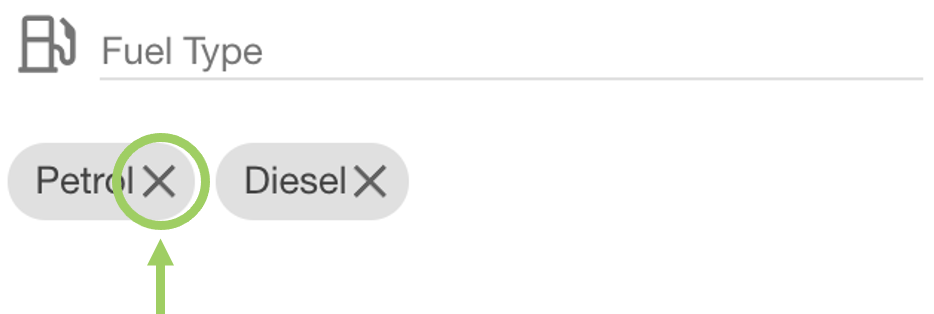
When all options have been removed, the field resets to ‘No fuel types selected’ - which would include all fuel types when filtering the assets.

Dropdown
Dropdown filters give you a number of different choices to pick from but do not allow free-typing. The down-pointing arrow is indicative of a dropdown filter field.
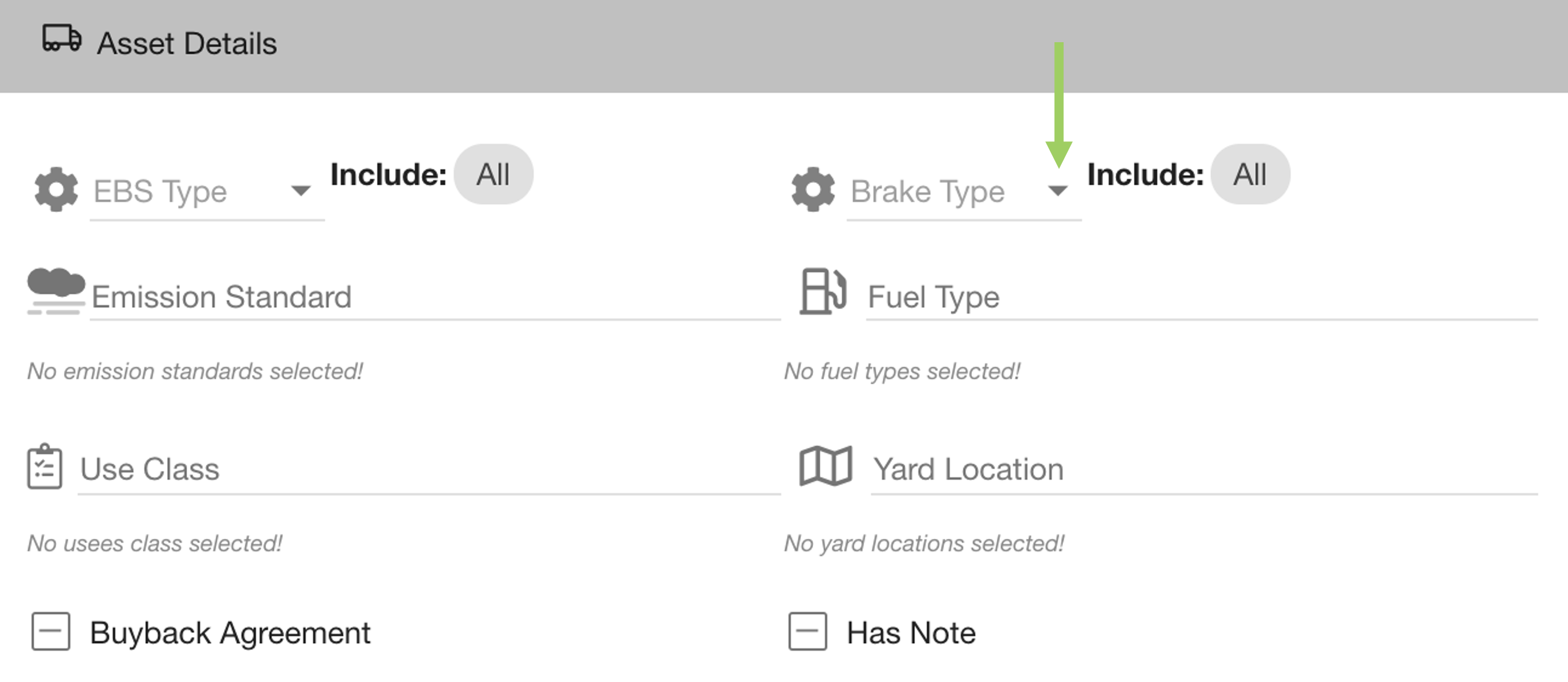
To open the dropdown options click on the placeholder in the field (e.g. ‘Brake Type’).
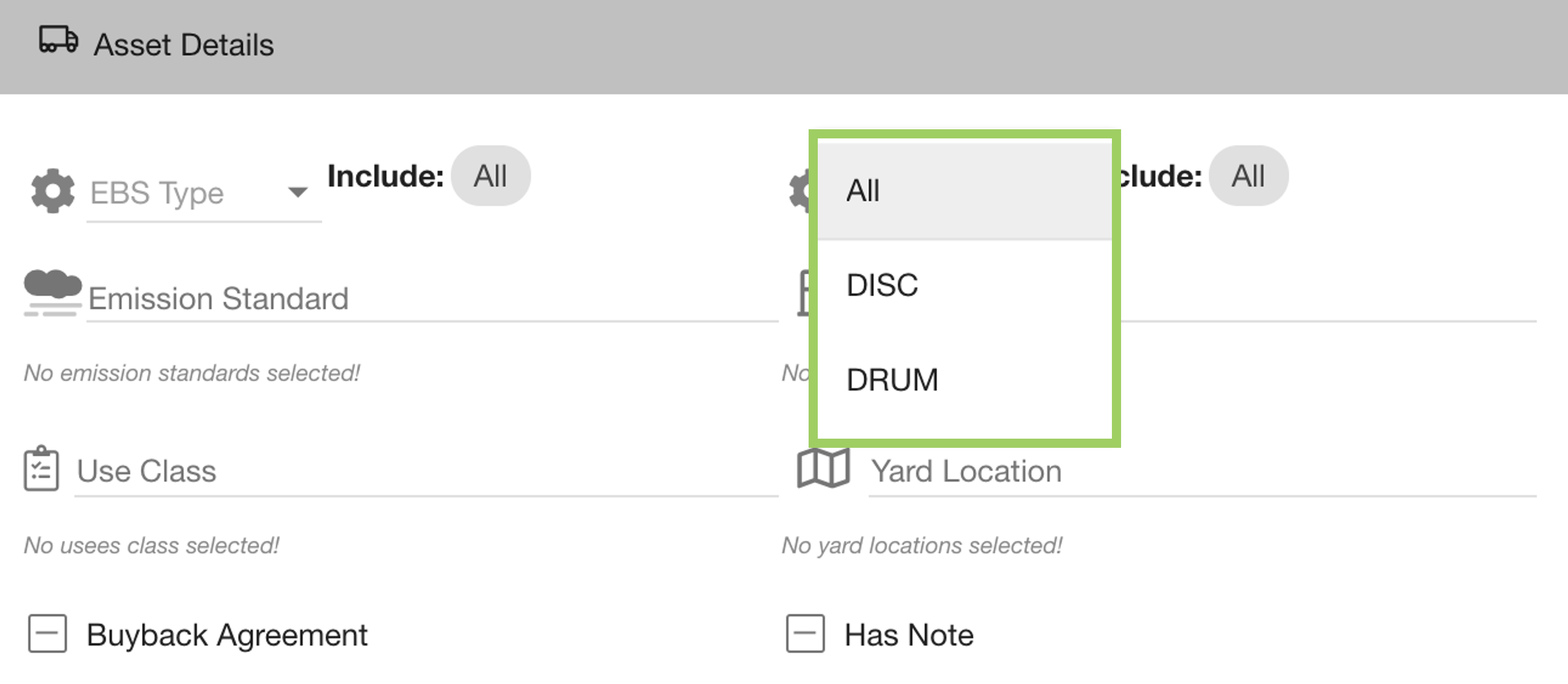
Click on an option (e.g. ‘DRUM’) to include that filter item. This will replace ‘Include: All' to add the selected option on a 'chip’.
UNKNOWN ATTACHMENT | UNKNOWN ATTACHMENT |
You can select more than one filter from the dropdown. Again, this will add this to the ‘Includes’ section. | UNKNOWN ATTACHMENT |
You can remove a filter item set by selecting the 'X' on the chip.
UNKNOWN ATTACHMENT | UNKNOWN ATTACHMENT |
If you only have one filter item selected and you remove it, the includes will switch back to ‘All’. | UNKNOWN ATTACHMENT |
Checkbox
Checkboxes can be used by clicking inside the square (☑ ) to change the state. Most of the report builder’s checkboxes are tri-state - either being checked, unchecked, or indeterminate
By default, checkboxes are indeterminate - which means both the unchecked and checked state is considered. In this example, every asset will be included whether they have a note or not. | UNKNOWN ATTACHMENT |
When a checkbox is empty (unchecked) the condition will not be applied. In this example, only assets without a note will be returned. | UNKNOWN ATTACHMENT |
When a checkbox is ticked (checked) the condition will be applied. In this example, only assets with a note will be returned. | UNKNOWN ATTACHMENT |
Slider
Slider filters are used to select a value from a range. This example asks for a MIN and/or MAX value to be selected from the filters.
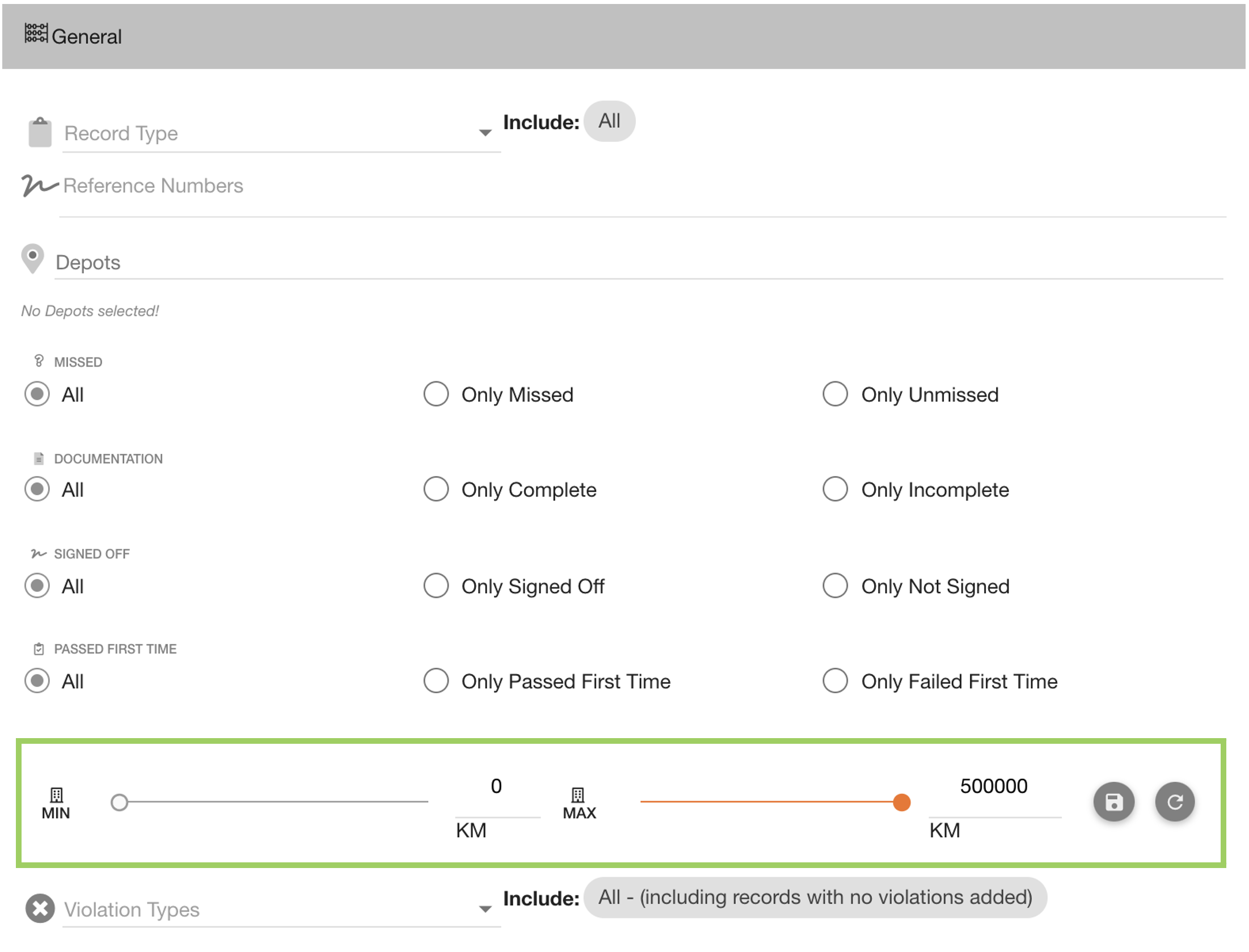
You can select a value from sliders by dragging the circle along the slider.

Alternatively, you can input a precise value in the textbox next to each slider.

To save in the values as a filter use the ‘Save’ 💾 button - before pressing save the filter will not affect the dynamic total sidebar or the CSV.

Or you can reset the sliders back to their original state by clicking the refresh button.

Date pickers
Date pickers are used to filter between two date ranges - a Start and End date. Some date pickers like in this example are accessible through checkboxes.
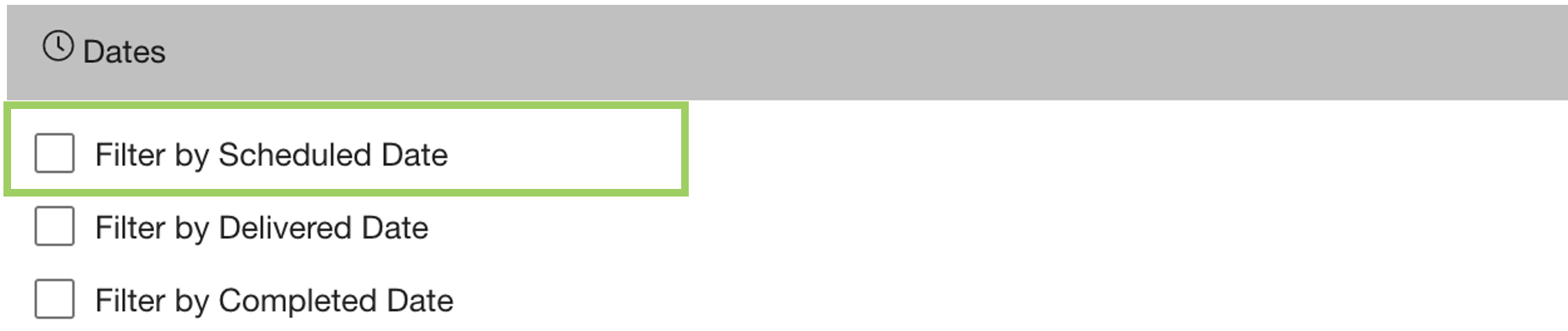
Once the checkbox has been ticked, both date the Start and End pickers will appear.
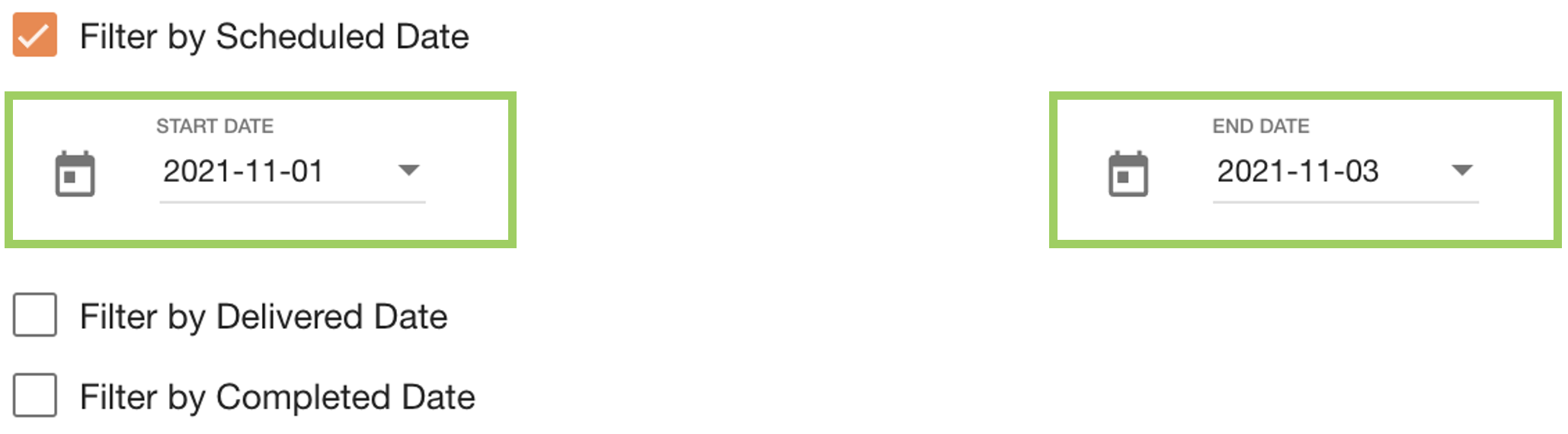
Click on the placeholder in the field to change the date.

This action will open the date picker calendar displaying the current date in the unfilled circle, and the selected date in the filled circle.
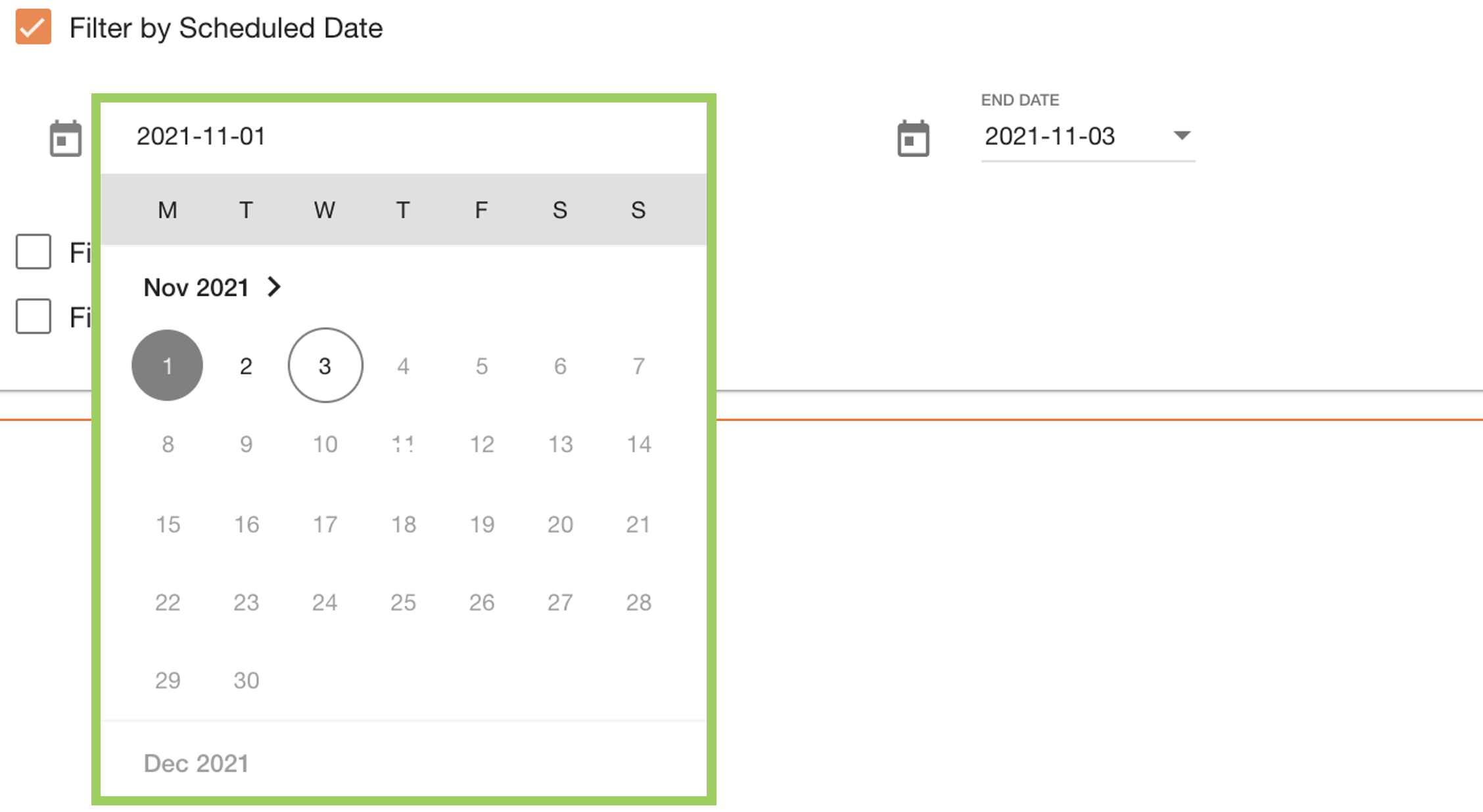
You can scroll up or down to move through months, then click on the day you want to set on the date picker.
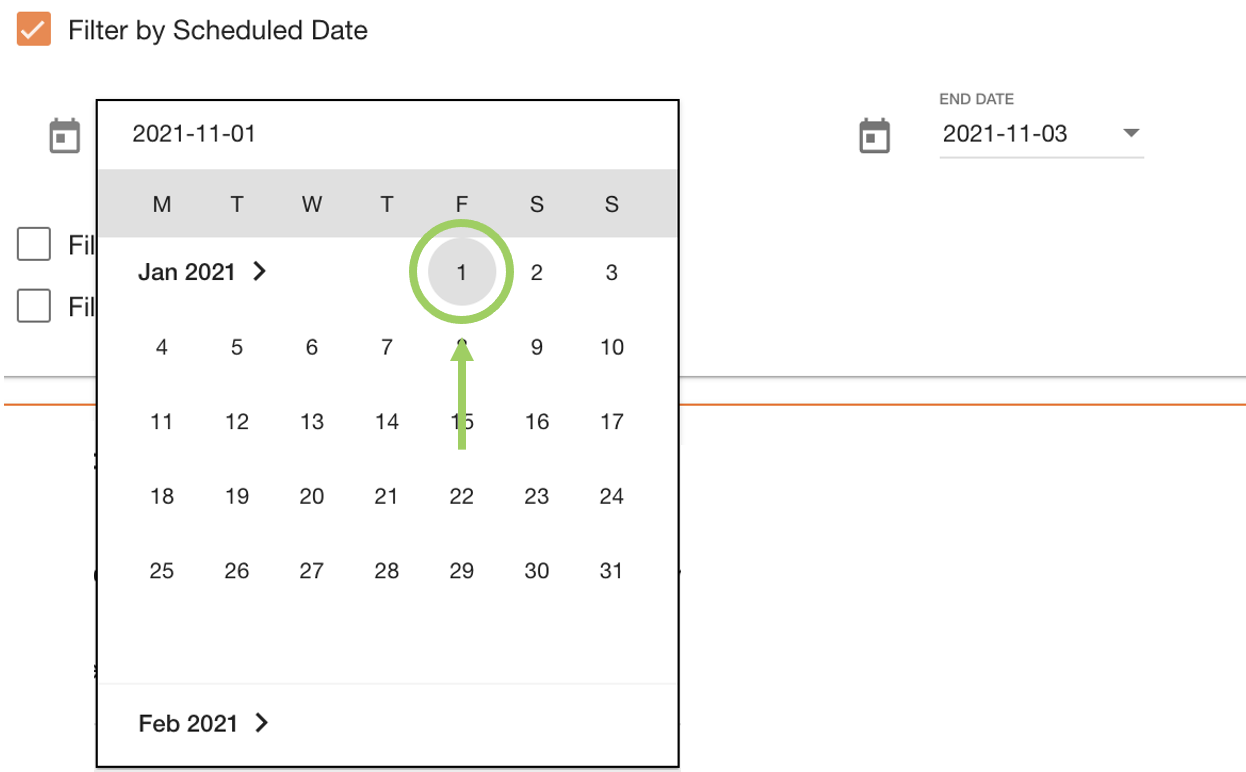
This will close the date picker calendar and reflect the changes in the date displayed.

 Troubleshooting

For any issues or errors that have not been solved please Contact Axscend Support.