
VOR Asset? is required
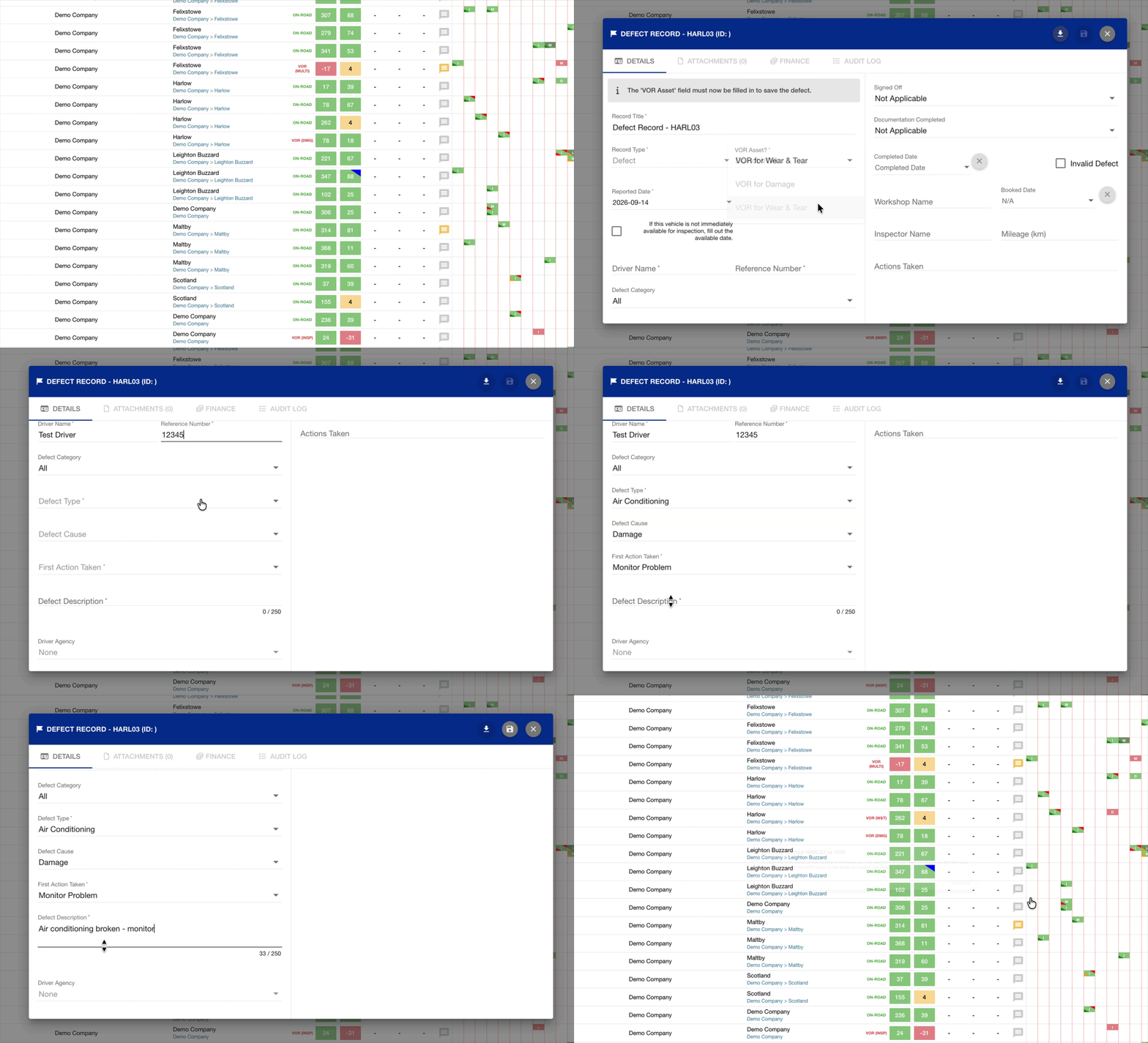
There is no longer a default option for VOR Asset?, so you must decide whether to VOR the asset every time you report a defect. Until you choose, a banner at the top of the form reads “The ‘VOR Asset’ field must now be filled in to save the defect.” and the Save button stays disabled.
The same applies when you move a defect report to maintenance: the move button stays disabled until you have selected both the action taken and a VOR option.
You only choose this when creating the defect. It isn’t shown when you edit an existing defect.
Go to the Maintenance Grid page to see how to get here.
You’re on the Maintenance Grid.
You have permission to create Maintenance Defects.
-
Select the asset you want to create a schedule for from the asset list.
-
Select the week you want in the Maintenance Grid Section.
-
Click on the week (cell).
-
A pop-up window will open.
-
-
Click REPORT A DEFECT.
-
Fill out all required fields.
-
In the defect details form, choose an option from VOR Asset? This field is now required. It is highlighted in red until you choose an option.
-
Do not VOR – the asset stays on-road.
-
VOR for Damage – the asset is set to VOR because of damage.
-
VOR for Wear & Tear – the asset is set to VOR because of wear and tear.
-
-
Click Save.
The defect has been reported.
Defect Type
Some defect types are specifically marked as safety-related, which may mean the vehicle cannot be safely operated whilst the defect remains.
You can set the asset to VOR until the defect has been fixed.
Defect Reference Number
You can either enter a defect reference number or have it automatically generated.
This option can be managed in your company’s ‘Defect’ settings on the main company tab under ‘Manage Companies’.
To enable auto-generated references, fill in the ‘Reference Number Sequence’ field.
To disable, leave the field blank.
❓ Frequently Asked Questions
"How do I set an Asset back to On-Road?'
You can set an Asset back to On-Road via the Maintenance Grid, by clicking the VOR status in the status column.

See Changing an Asset's VOR/On-Road Status - Maintenance Grid for full guidance.